Bulk Certificate Renamer
Python automation script to rename bulk certificate images exported from Canva using CSV data
Share this project:
Project Overview
Bulk Certificate Renamer
A simple yet powerful Python automation script designed to rename bulk certificate images exported from Canva's bulk certificate generator. This tool streamlines the process of organizing certificates by automatically renaming image files based on CSV data.
📋 Overview
When using Canva's bulk certificate generator, exported images are typically numbered sequentially (1.png, 2.png, etc.). This script automates the tedious process of renaming these certificates to match recipient names or custom identifiers from your CSV file, saving hours of manual work.
✨ Features
- Automated Bulk Renaming: Rename hundreds of certificates in seconds
- CSV-Based Mapping: Uses CSV file data for accurate name mapping
- Multiple Format Support: Works with PNG, JPG, and JPEG image formats
- Sequential Processing: Maintains correct order based on CSV sequence
- Validation Checks: Ensures file count matches CSV entries before processing
- Simple Execution: Single command operation
🛠️ Technologies Used
- Python 3.x: Core scripting language
- CSV Module: For reading and parsing CSV data
- OS Module: File system operations for renaming files
- Pathlib: Modern file path handling
📁 Project Structure
bulk-certificate-renamer/
├── main.py                 # Main script file
├── data_csv/              # Folder for CSV data
│   └── names.csv          # CSV file with recipient names
├── images/                # Folder for certificate images
│   ├── 1.png             # Numbered certificates from Canva
│   ├── 2.png
│   └── ...
└── README.md
🚀 Getting Started
Prerequisites
- Python 3.6 or higher installed on your system
- Basic understanding of command line operations
Installation Steps
-
Clone or download the repository
git clone <repository-url> cd bulk-certificate-renamer -
Verify Python installation
python --versionor
python3 --version
No additional packages are required as the script uses Python's built-in modules.
💻 How to Use
Step-by-Step Guide
-
Export Certificates from Canva
- Use Canva's bulk certificate generator
- Download/export all designs as PNG, JPG, or JPEG format
- Files will be numbered sequentially (1.png, 2.png, etc.)
-
Organize Your Files
- Place all exported certificate images into the
images/folder - Ensure your CSV file is in the
data_csv/folder
- Place all exported certificate images into the
-
Prepare CSV File
- Create a CSV file with recipient names or desired file names
- Ensure the CSV has the same number of entries as images
- Format: One name per row
Example
names.csv:John Doe Jane Smith Bob Johnson Alice Williams Charlie Brown -
Verify File Count
- Make sure the number of images in
images/folder matches the number of entries in your CSV file - Mismatch will cause incorrect renaming
- Make sure the number of images in
-
Run the Script
python main.pyThe script will:
- Read names from CSV file
- Match each name with corresponding numbered image
- Rename files based on CSV data
- Display progress in console
-
Check Results
- Navigate to the
images/folder - Verify that all certificates are renamed correctly
- Navigate to the
📸 Visual Example
Before Running Script
Images are numbered sequentially:
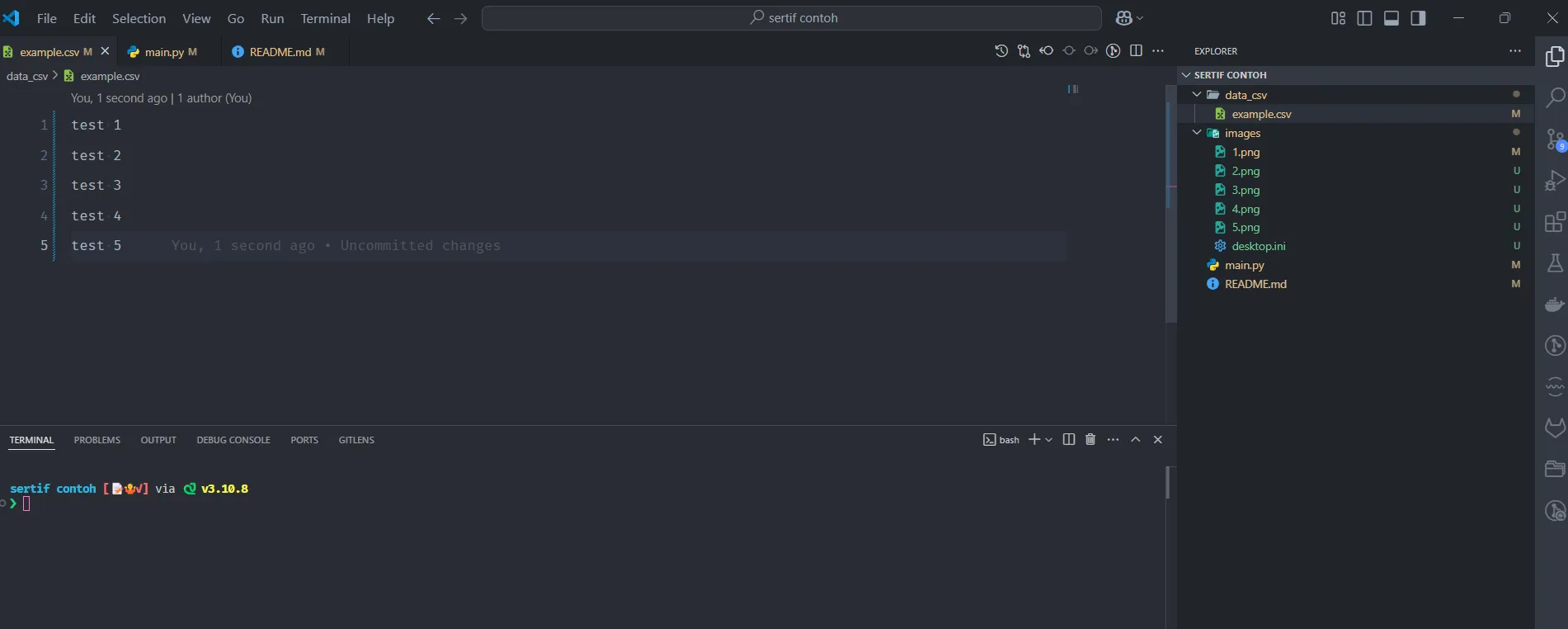
- Files:
1.png,2.png,3.png,4.png,5.png - CSV entries:
test 1,test 2,test 3,test 4,test 5
After Running Script
Images are renamed to match CSV data:
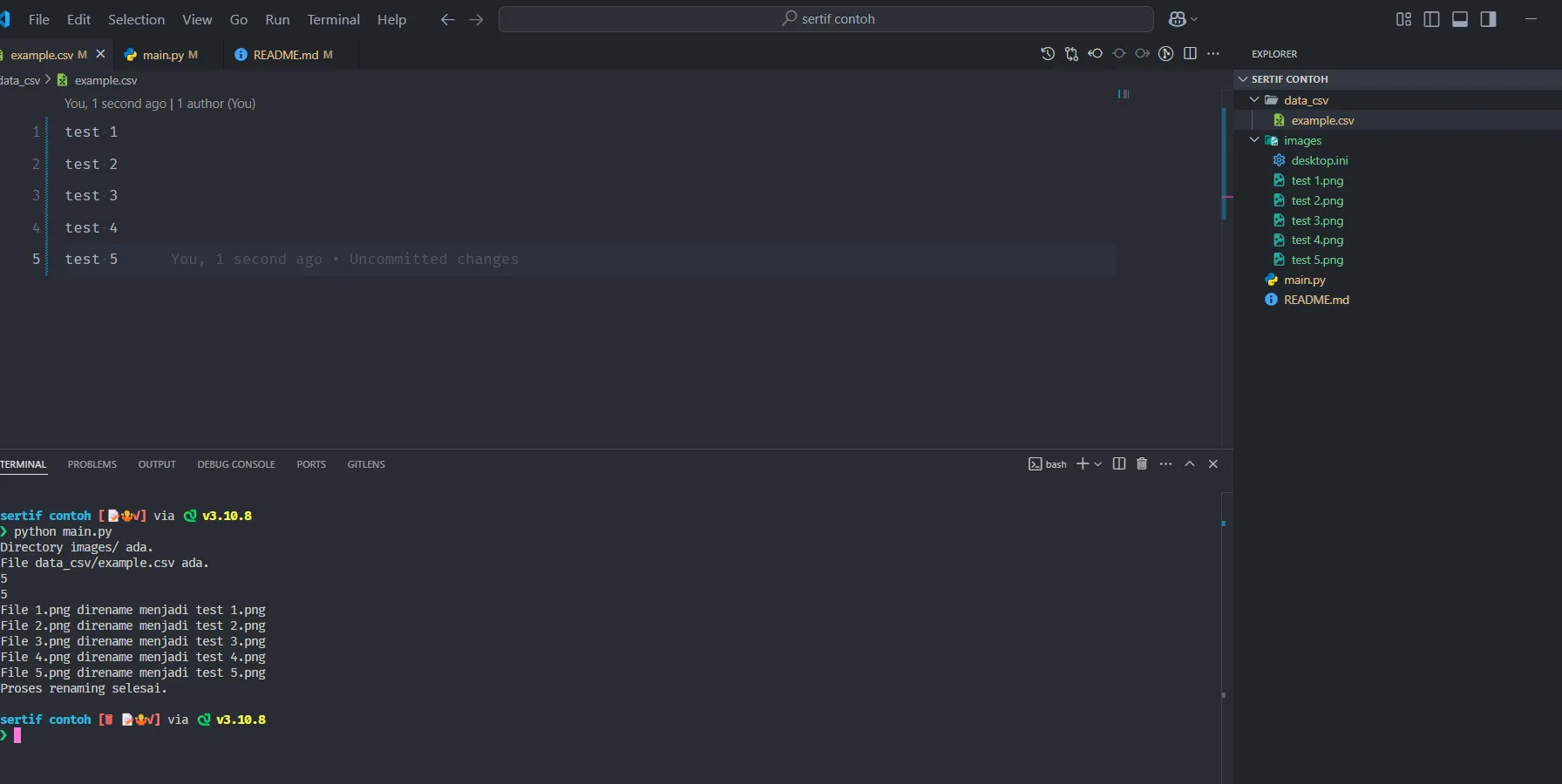
- Files:
test 1.png,test 2.png,test 3.png,test 4.png,test 5.png - Perfectly matched with CSV entries!
⚙️ Configuration
CSV File Format
The script expects a simple CSV file with one name per row:
Name 1
Name 2
Name 3
Supported Image Formats
- PNG (.png)
- JPG (.jpg)
- JPEG (.jpeg)
🔍 Troubleshooting
Common Issues
-
File Count Mismatch
- Problem: Number of images ≠ number of CSV entries
- Solution: Verify both counts match exactly before running
-
CSV Not Found
- Problem: CSV file not in correct location
- Solution: Ensure CSV is in
data_csv/folder
-
Permission Errors
- Problem: Script can't rename files
- Solution: Ensure you have write permissions for the images folder
-
Python Not Found
- Problem: Python not installed or not in PATH
- Solution: Install Python and add to system PATH
🎯 Use Cases
- Event Certificates: Rename certificates for workshop/seminar attendees
- Award Certificates: Organize award certificates by recipient names
- Course Completion: Batch rename course completion certificates
- Custom Documents: Any bulk document renaming from Canva exports
🚀 Advanced Usage
Custom CSV Path
Modify main.py to use a different CSV file:
csv_file = 'path/to/your/custom.csv'
Different Image Folder
Change the image directory in the script:
image_folder = 'path/to/your/images'
📝 Best Practices
- Backup Original Files: Always keep a backup of original numbered files
- Test First: Run on a small batch before processing hundreds of files
- Verify CSV: Double-check CSV data for typos before running
- Consistent Format: Ensure all images have the same file format
- Clean Names: Avoid special characters in CSV names for compatibility
🤝 Contributing
Improvements and suggestions are welcome! Feel free to:
- Report bugs
- Suggest new features
- Submit pull requests
- Share your use cases
📄 License
This project is open source and available for personal and commercial use.
💡 Tips
- Use descriptive names in your CSV for better organization
- Consider adding a date prefix for chronological ordering
- Test the script with a few files before running on large batches
- Keep your CSV and images synchronized
Save time, automate the boring stuff! 🚀